All TV Service Menu Code

Electronic Repair, Manuals, Reference and TV Factory service mode

  • Home
  • Database
  • LCD
  • LED
  • CRT
  • Plasma
  • DLP
  • FORUM
  • Upload
  • Download
  • Join
  • Rss
  • Mobile
  • Panasonic TC-42P1 TV Service menu
  • Grundig TV Hotel mode
  • Grundig Chassis 22.1 TV Service menu
  • Grundig Chassis D6 TV Service menu
  • Hipson TV Service Menu
  • Panasonic TX-15LT2Z TV Service menu
  • Panasonic TAU TV Service Menu
  • Panasonic CT-Z1422 TV Service Menu
  • Hamilton
  • Hitachi TV Service Menu

Acer LCD Television Service Menu

Acer | Author | February 05, 2015
Acer AT2645, Acer AT2646, Acer AT2602, Acer AT2621, Acer AT2635, Acer AT3201 and Acer AT3202.
Approximately 30 minutes should be allowed for warm up before proceeding white balance adjustment.

YPbPr Mode display adjustment
White balance adjustment (B)
General set-up :
Equipment Requirements: Minolta CA-110 or Equivalent Color analyzer
Quantum Data Pattern Generator 802G , 802BT or equivalent instrument
Input requirements:
Input Signal Type: YPbPr signal
1. 720P mode, TVBar100 pattern by 802G or 802BT.
2. Select Smart picture to User mode and check the x, y data.
Input Signal Strength: 1 Vpp for Y signal; 700 mVpp for Pb & Pr signal
Input Injection Point: YPbPr (RAC jack)
Service Menu Acer LCD TV
Photo credit to www.inisdesign.com

Alignment method:
Initial Set-up:
1. Select source as “Component”.
2. Set Smart picture as “User” and to be Contrast =50(TBD) (CMO), Brightness=50(TBD) (CMO), at normal menu
mode.
3. Apply “TVBar100” pattern with color bar pattern by signal generator.
4. Enter factory mode menu: press “MENU+ “234” then enter FAC mode.
Alignment:
1. At FAC mode menu, select FACTORY->Picture ->ADC -> Auto Colour item. Then press “>” key to adjust
ADC_GAIN_R, ADC_GAIN_G, ADC_GAIN_B and ADC_OFFSET_R, ADC_OFFSET_G, ADC_OFFSET_B. Then
store those values to NVM.
White- Balance alignment :
1. Select source as “HDMI1”
2. Apply Flat pattern (100% white pattern) , at FAC mode menu, select Factory -> Picture -> Colour Temp item
3. Set color temperature to “Standard”.
4. Adjust the R Gain, G_Gain, B_Gain values to meet “Standard” color coordinates specification below. Then store
those values to NVM.
5. Set color temperature to “Warm”.
6. Adjust the R Gain, G_Gain, B_Gain values to meet “Warm” color coordinates specification below. Then store
those values to NVM.
7. Set color temperature to “Cold”.
8. Adjust the R Gain, G_Gain, B_Gain values to meet “Cold” color coordinates specification below. Then store
those values to NVM.

Note:
1. Use Minolta CA-110 for color coordinates and luminance check.
2. Luminance > 400 cd/m2 in the center of the screen when Brightness control at 100; Contrast control at 100
3. Reset AV setting, smart picture shall be recalled to be “Standard” and Contrast= (TBD) (CMO),
Brightness=(TBD) (CMO)
PC mode display adjustment
WHITE-D adjustment (B)
General set-up:
Equipment Requirements: Minolta CA-110 or Equivalent Color analyzer
Chroma 2250 or equivalent PC signal generator
Input requirements:
Input Signal Type: PC VGA signal
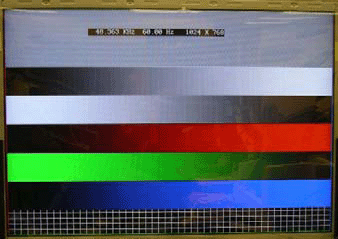
1024X768/60Hz PC mode with PGCWRGB pattern. (see pattern-1)
Input Signal Strength: 0.7 Vp-p linear voltage.
Input Injection Point: PC D-SUB input

Alignment method:
Initial Set-up:
1. Select source as “VGA”.
2. Set Contrast = 50 (CMO) and Brightness=50 (CMO) , at Standard menu mode.
3. Apply “PGCWRGB”(pattern-1) pattern by VGA pattern generator.
4. Enter factory mode menu: press “MENU+ “234” then enter FAC mode
Alignment:
1. At FAC mode menu, select FACTORY->Picture ->ADC -> Auto Colour item. Then press “>” key to adjust
ADC_GAIN_R, ADC_GAIN_G, ADC_GAIN_B and ADC_OFFSET_R, ADC_OFFSET_G, ADC_OFFSET_B. Then
store those values to NVM.

Acer AT2645 LCD TV Service Menu

Acer | Author | February 03, 2015
Acer AT2635B , Acer AT2645 and Acer AT2646 Service mode.
Approximately 30 minutes should be allowed for warm up before proceeding white balance adjustment.
YPbPr Mode display adjustment White balance adjustment (B)

General set-up :
Equipment Requirements: Minolta CA-110 or Equivalent Color analyzer Quantum Data Pattern Generator 802G , 802BT or equivalent instrument Input requirements:
Input Signal Type: YPbPr signal
1. 720P mode, TVBar100 pattern by 802G or 802BT.
2. Select Smart picture to User mode and check the x, y data.
Input Signal Strength: 1 Vpp for Y signal; 700 mVpp for Pb & Pr signal
Input Injection Point: YPbPr (RAC jack)

Acer LCD tv service mode
Photo credit to www.inisdesign.com

Acer AT2635B , Acer AT2645 and Acer AT2646 Color temperature Standard/Warm/Cold (x, y) co-ordinates specification:
Picture Mode x Y
Normal (10000oK) 0.281±0.003 0.288±0.003
Warm (8000oK) 0.295±0.003 0.305±0.003
Cold (13000oK) 0.269±0.003 0.274±0.003

Alignment method Acer AT2635B , Acer AT2645 and Acer AT2646:
Initial Set-up:
1. Select source as “VGA”.
2. Set Contrast = 50 (CMO) and Brightness=50 (CMO) , at Standard menu mode.
3. Apply “PGCWRGB”(pattern-1) pattern by VGA pattern generator.
4. Enter factory mode menu: press “MENU+ “234” then enter FAC mode
Alignment:
1. At FAC mode menu, select FACTORY->Picture ->ADC -> Auto Colour item. Then press “>” key to adjust
ADC_GAIN_R, ADC_GAIN_G, ADC_GAIN_B and ADC_OFFSET_R, ADC_OFFSET_G, ADC_OFFSET_B. Then
store those values to NVM.

Acer LCD AT2356 TV Service Menu

Acer | Author | February 02, 2015
Acer AT2355 & AT2356 LCD TV Service Mode
Approximately 30 minutes should be allowed for warm up before proceeding white balance adjustment.
It’s no need to adjust the white balance for this model.
1. Enter into Acer AT2356 TV  factory mode:
Turn on the TV, press MENU key with remote control, then press number key 1 => 9 => 9 => 9. It will achieve the factory mode
2. Click on "Auto Color" in the COMPONENT models: COMPONENT mode: TIM = 314; PAT = 185
Set auto color to No
3. Acer AT2356 TV White balance adjustment in the HDMI models: color temp to normal
Item 16=> for color temp select.
Item 17/item 18/item 19 Gain => for Red, Green and Blue gain tuning, those values will available for All input and All picture mode. The adjust range is 0 ~ 255.
Item 20/item 21/item 22 Offset => for Red, Green and Blue offset tuning, those values will available for all input and All picture mode. The adjust range is 0 ~ 255.
White pattern: HDMI timing 355 pattern 105(100ire white)

Acer AT2355  LCD TV Service menu 
Photo credit to www.inisdesign.com 

Upload by Kenji Sato


Acer AT2245 LCD TV Service Menu

Acer | Author | February 01, 2015
Acer AT2245 & AT2246 TV Service mode
First adjust PC mode and then adjust AV mode, before started adjust white balance, please setting the
Chroma-7120 MEM. Channel 1 to Cold color, MEM. MEM. channel 3 to standard color, MEM. and MEM.
channel 5 to warm color, ( our cold parameter is x = 300 ± 15, y = 310 ± 15, Y = 350 ± 7 cd/m2 ; ;standard
parameter is x =314 ± 15, y =324 ± 15, Y = 350± 7 cd/m2;warm parameter is x =326± 15, y = 335± 15, Y = 350± 7
cd/m2)
How to setting MEM. channel you can reference to Chroma-7120 user guide or simple use “ SC” key and “ NEXT”
key to modify x, y , Y value and use “ID” key to modify the TEXT description
Following is the procedure to do white-balance adjust.

Acer AT2245 & AT2246 TV Service mode PC mode:
I. Press menu key, then press code 2=>3=>4 will into the factory mode, the OSD will show menu
and a word “Factory” at the top of Menu.
1. In the factory mode select “COLOR TEMP” may be select the difference color temp.
2. Select SCALER Adjustment:
RG, GG, BG => R, G, B Gain adjust.
RB, GB, BB => R, G, B Bias adjust.

Acer AT2246 LCD TV Service Menu
Photo credit to www.inisdesign.com


II. Bias (Low luminance) adjustment:
1. Set the raster pattern (Black pattern with 1024×768) Input.
2. Set the contrast on OSD window to the value=80, Brightness set to “80”
3. Adjust the brightness on OSD until chroma 7120 measurement reach the lowest value.

III, Gain adjustment Acer AT2245 & AT2246 TV Service mode:
A. Adjust Cold color-temperature:
1. Set the Contrast of OSD function to 80 and Adjust Brightness to chroma-7120 Y>350 cd/m2
2. Switch the chroma-7120 to RGB-mode (with press “MODE” button)
3. Switch the MEM. channel to Channel 03 (with up or down arrow on chroma-7120)
4. The LCD-indicator on chroma-7120 will show x =300 ± 15, y = 310 ± 15, Y = 350 ± 7 cd/m2
5. Adjust the Color (user) Mode: RED on OSD window, until chroma 7120 indicator reached the value R=100
6. Adjust the Color (user) Mode: GREEN on OSD window, until chroma-7120 indicator reached the value G=100
7. Adjust the Color (user) Mode: BLUE on OSD window, until chroma-7120 indicator reached the value B=100
8. Repeat above procedure (Item 5,6,7) until chroma-7120 RGB value meet the tolerance =100±2
9. Switch the chroma-7120 to x, y, Y mode With press “MODE” button to check the color temp is in SPEC. or not.
10. Press MENU to exit the SCALER page and press Save to save the current color temp.

B. Adjust Warm color-temperature Acer AT2245 & AT2246 TV Service mode:
1. Set the Contrast of OSD function to 80 and Adjust Brightness to chroma-7120 Y>350 cd/m2
2. Switch the chroma-7120 to RGB-mode (with press “MODE” button)
3. Switch the MEM.channel to Channel 03 (with up or down arrow on chroma-7120)
4. The LCD-indicator on chroma-7120 will show x = 326 ± 15, y = 335 ± 15, Y = 350 ± 30cd/m2
5. Adjust the Color (user) Mode: RED on OSD window, until chroma 7120 indicator reached the value R=100
6. Adjust the Color (user) Mode: GREEN on OSD window, until chroma-7120 indicator reached the value G=100
7. Adjust the Color (user) Mode: BLUE on OSD window, until chroma-7120 indicator reached the value B=100
8. Repeat above procedure (item 5,6,7) until chroma-7120 RGB value meet the tolerance =100 ±2
9. Switch the chroma-7120 to X, y, Y mode with press “MODE” button
10. Press MENU to exit the SCALER page and press Save to save the current color temp.

C. Adjust Standard color-temperature Acer AT2245 & AT2246 TV Service mode:
1. Set the Contrast of OSD function to 80 and Adjust Brightness to chroma-7120 Y>350 cd/m2
2. Switch the chroma-7120 to RGB-mode (with press “MODE” button)
3. Switch the MEM. channel to Channel 03 (with up or down arrow on chroma-7120)
4. The LCD-indicator on chroma-7120 will show x = 314 ± 15, y = 324 ± 15, Y = 350 ± 30cd/m2
5. Adjust the Color (user) Mode: RED on OSD window, until chroma 7120 indicator reached the value R=100
6. Adjust the Color (user) Mode: GREEN on OSD window, until chroma-7120 indicator reached the value G=100
7. Adjust the Color (user) Mode: BLUE on OSD window, until chroma-7120 indicator reached the value B=100
8. Repeat above procedure ( item 5,6,7) until chroma-7120 RGB value meet the tolerance =100 ± 2
9. Switch the chroma-7120 to XyY mode With press “MODE” button
10. Press MENU to exit the SCALER page and press Save to save the current color temp.

Turn the POWER-button off to on to quit from Acer AT2245 & AT2246 TV Service  factory mode ( in USER-mode, the OSD window location was placed at middle of screen)

Upload by Kenji Sato


Acer LCD AT2230 TV Service menu

Acer | Author | January 31, 2015
Acer AT2230 & AT2231 TV Service mode

White-Balance, Luminance Adjustment
Approximately 30 minutes should be allowed for warm up before proceeding white balance adjustment.
YPbPr Mode display adjustment White balance adjustment (B)
General set-up:
Equipment Requirements: Minolta CA-110 or Equivalent Color analyzer Quantum Data Pattern Generator 802G, 802BT or equivalent instrument Input requirements:
Input Signal Type: YPbPr signal
1. 720P mode, TVBar100 pattern by 802G or 802BT.
2. Select Smart picture to User mode and check the x, y data. Input Signal Strength: 1 Vpp for Y signal; 700 mVpp for Pb & Pr signal Input Injection Point: YPbPr (RAC jack)

Alignment method Acer AT2230 & AT2231 :
Initial Set-up:
1. Select source as “Component”.
2. Set Smart picture as “User” and to be Contrast =50(TBD) (CMO), Brightness=50(TBD) (CMO), at normal menu mode.
3. Apply “TVBar100” pattern with color bar pattern by signal generator.
4. Enter factory mode menu: press “MENU + “234” then enter FAC mode.
Alignment:
1. At FAC mode menu, select FACTORY->Picture ->ADC -> Auto Colour item. Then press “>” key to adjust
ADC_GAIN_R, ADC_GAIN_G, ADC_GAIN_B and ADC_OFFSET_R, ADC_OFFSET_G, ADC_OFFSET_B. Then store those values to NVM.
Acer AT2231 TV Service menu
Photo credit to www.inisdesign.com


White- Balance alignment Acer AT2230 & AT2231 :
1. Select source as “HDMI1”
2. Apply Flat pattern (100% white pattern), at FAC mode menu, select Factory -> Picture -> Colour Temp item
3. Set color temperature to “Standard”.
4. Adjust the R Gain, G Gain, B Gain values to meet “Standard” color coordinates specification below. Then store those values to NVM.
5. Set color temperature to “Warm”.
6. Adjust the R Gain, G Gain, B Gain values to meet “Warm” color coordinates specification below. Then store those values to NVM.
7. Set color temperature to “Cold”.
8. Adjust the R Gain, G Gain, B Gain values to meet “Cold” color coordinates specification below. Then store those values to NVM.

Note:
1. Use Minolta CA-110 for colour coordinates and luminance check.
2. Luminance > 250 cd/m2 in the center of the screen when Brightness control at 100; Contrast control at 100
3. Reset AV setting, smart picture shall be recalled to be “Standard” and Contrast=50 (CMO), Brightness=50 (CMO)

Acer LCD Service mode

PC mode display adjustment WHITE-D adjustment (B)
General set-up:
Equipment Requirements: Minolta CA-110 or Equivalent Color analyzer
Chroma 2250 or equivalent PC signal generator
Input requirements:
Input Signal Type: PC VGA signal
1024X768/60Hz PC mode with PGCWRGB pattern. (see pattern-1)
Input Signal Strength: 0.7 Vp-p linear voltage.
Input Injection Point: PC D-SUB input.

Alignment method Acer AT2230 & AT2231 :
Initial Set-up:
1. Select source as “VGA”.
2. Set Contrast = 50 (CMO) and Brightness=50 (CMO), at Standard menu mode.
3. Apply “PGCWRGB”(pattern-1) pattern by VGA pattern generator.
4. Enter factory mode menu: press “MENU+ “234” then enter FAC mode
Alignment:
1. At FAC mode menu, select FACTORY->Picture ->ADC -> Auto Colour item. Then press “>” key to adjust Acer AT2230 & AT2231 .
ADC_GAIN_R, ADC_GAIN_G, ADC_GAIN_B and ADC_OFFSET_R, ADC_OFFSET_G, ADC_OFFSET_B. Then store those values to NVM.

Acer AT2010 LCD TV Service Menu

Acer | Author | January 29, 2015
Acer AT2010 LCD TV Service mode
Approximately 30 minutes should be allowed for warm up before proceeding white
balance adjustment.

Before started adjust white balance of Acer AT2010 LCD TV , please setting the Chroma-7120 MEM. Channel 1 to 14000 color, MEM. channel 2 to 12000 color, MEM. channel 3 to 9300 color, MEM. channel 4 to 8000 color, and MEM.
channel 5 to 6500 color, ( our 14000 parameter is x = 266 ± 15, y = 270 ± 15, Y = 300 ± 7 cd/m2 ; 12000
parameter is x = 272 ± 15, y = 278 ± 15, Y = 300± 7 cd/m2 ;9300 parameter is x = 283 ± 15, y = 297 ± 15, Y= 300± 7 cd/m2;8000 parameter is x = 295 ± 15, y = 305 ± 15, Y = 300± 7 cd/m2;6500 parameter is x = 313 ±15, y = 329 ± 15, Y = 300± 7 cd/m2)
How to setting MEM. channel you can reference to Chroma-7120 user guide or simple use “ SC” key and “ NEXT” key to modify x, y , Y value and use “ID” key to modify the TEXT description Following is the procedure to do white-balance adjust

I. Press Number key 1 => 9 => 9 => 9 will into the factory mode, and press Menu key the OSD will show menu and a word “F” at LEFT top of Menu.
1. In the factory mode select “COLOR TEMP” may be select the difference color temp.
2. Select SCALER Adjustment: RG, GG, BG  => R, G, B Gain adjust. RB, GB, BB => R, G, B Bias adjust.
<Notes: the R, G, B gain use 9 bits, and R, G, B bias use 10 bits to save the value in EEPROM,
so if the R, G, B gain and bias is 255 to 256, the “P0 256”will change to “P10”>


Notes: adjust AV mode the same as PC mode, except the luminance (Pc mode is 350cd/m2, Av is 420cd/m2).
Service Menu Acer AT2010 LCD TV
Photo credit to inisdesign.com

II. Bias (Low luminance) adjustment:
1. Set the raster pattern (Black pattern with 1024×768) Input.
2. Set the contrast on OSD window to the value=80, Brightness set to “80”
3. Adjust the brightness on OSD until chroma 7120 measurement reach the lowest value.

III, Acer AT2010 LCD TV Service mode Gain adjustment:
A. Adjust 14000 color-temperature:
1. Set the Contrast of OSD function to 80 and Adjust Brightness to chroma-7120 Y>350 cd/m2
2. Switch the chroma-7120 to RGB-mode (with press “MODE” button)
3. Switch the MEM.channel to Channel 03 (with up or down arrow on chroma-7120)
4. The LCD-indicator on chroma-7120 will show x = 266 ± 15, y = 270 ± 15, Y = 300 ± 7 cd/m2
5. Adjust the Color (user) Mode: RED on OSD window, until chroma 7120 indicator reached the value R=100
6. Adjust the Color (user) Mode: GREEN on OSD window, until chroma-7120 indicator reached the value G=100
7. Adjust the Color (user) Mode: BLUE on OSD window, until chroma-7120 indicator reached the value B=100
8. Repeat above procedure (Item 5,6,7) until chroma-7120 RGB value meet the tolerance =100±2
9. Switch the chroma-7120 to x, y, Y mode With press “MODE” button to check the color temp is in SPEC. or not.
10. Press MENU to exit the SCALER page and press Save to save the current color temp.

B. Acer AT2010 LCD TV Service mode Adjust 12000 color-temperature:
1. Set the Contrast of OSD function to 80 and Adjust Brightness to chroma-7120 Y>350 cd/m2
2. Switch the chroma-7120 to RGB-mode (with press “MODE” button )
3. Switch the MEM.channel to Channel 02 ( with up or down arrow on chroma-7120 )
4. The LCD-indicator on chroma-7120 will show x = 272 ± 15, y = 278 ± 15, Y = 300 ± 7 cd/m2
5. Adjust the Color(user)Mode: RED on OSD window, until chroma 7120 indicator reached the value R=100
6. Adjust the Color (user) Mode: GREEN on OSD window, until chroma-7120 indicator reached the value G=100
7. Adjust the Color(user)Mode: BLUE on OSD window, until chroma-7120 indicator reached the value B=100
8. Repeat above procedure (item 5,6,7) until chroma-7120 RGB value meet the tolerance =100 ±2
9. Switch the chroma-7120 to x, y, Y mode with press “MODE” button
10. Press MENU to exit the SCALER page and press Save to save the current color temp.

C. Adjust 9300 color-temperature:
1. Set the Contrast of OSD function to 80 and Adjust Brightness to chroma-7120 Y>370 cd/m2
2. Switch the chroma-7120 to RGB-mode (with press “MODE” button)
3. Switch the MEM.channel to Channel 03 (with up or down arrow on chroma-7120)
4. The LCD-indicator on chroma-7120 will show x = 283 ± 15, y = 297 ± 15, Y = 300 ± 7 cd/m2
5. Adjust the Color (user) Mode: RED on OSD window, until chroma 7120 indicator reached the value R=100
6. Adjust the Color (user) Mode: GREEN on OSD window, until chroma-7120 indicator reached the value G=100
7. Adjust the Color (user) Mode: BLUE on OSD window, until chroma-7120 indicator reached the value B=100
8. Repeat above procedure ( item 5,6,7) until chroma-7120 RGB value meet the tolerance =100 ± 2
9. Switch the chroma-7120 to XyY mode With press “MODE” button
10. Press MENU to exit the SCALER page and press Save to save the current color temp.

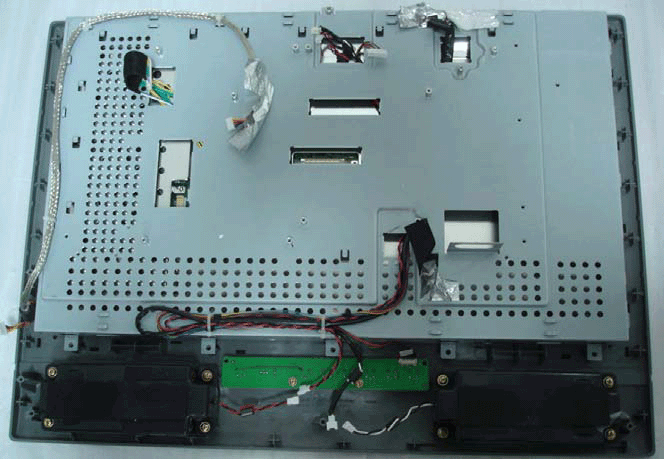
Opened chassis Acer AT2010 LCD

D. Adjust 8000 color-temperature:
1. Set the Contrast of OSD function to 80 and Adjust Brightness to chroma-7120 Y>370 cd/m2
2. Switch the chroma-7120 to RGB-mode (with press “MODE” button)
3. Switch the MEM.channel to Channel 03 (with up or down arrow on chroma-7120 )
4. The LCD-indicator on chroma-7120 will show x = 295 ± 15, y = 305 ± 15, Y = 300 ± 7 cd/m2
5. Adjust the Color (user) Mode: RED on OSD window, until chroma 7120 indicator reached the value
R=100
6. Adjust the Color (user) Mode: GREEN on OSD window, until chroma-7120 indicator reached the value G=100
7. Adjust the Color (user) Mode: BLUE on OSD window, until chroma-7120 indicator reached the value B=100
8. Repeat above procedure (item 5,6,7) until chroma-7120 RGB value meet the tolerance =100 ±2
9. Switch the chroma-7120 to X, y, Y mode with press “MODE” button of Acer AT2010 LCD TV Service mode
10. Press MENU to exit the SCALER page and press Save to save the current color temp.

E. Adjust 6500 color-temperature:
1. Set the Contrast of OSD function to 80 and Adjust Brightness to chroma-7120 Y>370 cd/m2
2. Switch the chroma-7120 to RGB-mode (with press “MODE” button)
3. Switch the MEM.channel to Channel 03 (with up or down arrow on chroma-7120)
4. The LCD-indicator on chroma-7120 will show x = 313 ± 15, y = 329 ± 15, Y = 300 ± 7 cd/m2
5. Adjust the Color (user) Mode: RED on OSD window, until chroma 7120 indicator reached the value
R=100
6. Adjust the Color (user) Mode: GREEN on OSD window, until chroma-7120 indicator reached the value G=100
7. Adjust the Color (user) Mode: BLUE on OSD window, until chroma-7120 indicator reached the value B=100
8. Repeat above procedure (item 5,6,7) until chroma-7120 RGB value meet the tolerance =100 ±2
9. Switch the chroma-7120 to X, y, Y mode with press “MODE” button
10. Press MENU to exit the SCALER page and press Save to save the current color temp.

Turn the POWER-button off to on to quit from factory mode ( in USER-mode, the OSD window location was placed at middle of Acer AT2010 LCD TV screen)

Upload by Kenji Sato


Acer AT1945 LCD TV Service Menu

Acer | Author | January 28, 2015
Acer AT1945 and Acer AT1946 LCD TV service mode
White-Balance, Luminance Adjustment
Approximately 30 minutes should be allowed for warm up before proceeding white balance adjustment.
First adjust PC mode and then adjust AV mode, before started adjust white balance, please setting the
Chroma-7120 MEM. Channel 1 to Cold color, MEM. MEM. channel 3 to standard color, MEM. and MEM.
channel 5 to warm color, ( our cold parameter is x = 300 ± 15, y = 310 ± 15, Y = 350 ± 7 cd/m2 standard parameter is x =314 ± 15, y =324 ± 15, Y = 350± 7 cd/m2;warm parameter is x =326± 15, y = 335± 15, Y = 350± 7 cd/m2)

How to setting MEM. channel you can reference to Chroma-7120 user guide or simple use “ SC” key and “ NEXT”
key to modify x, y , Y value and use “ID” key to modify the TEXT description
Following is the procedure to do white-balance adjust.

Notes: Step of AV mode adjustment is the same as PC mode

Acer AT1946 TV service menu
Photo credit to www.inisdesign.com

Acer AT1945 and Acer AT1946 TV service mode in PC mode:
I. Press menu key, then press code 2 =>3 => 4 will enter into the factory mode, the OSD will show menu and a word “Factory” at the top of Menu.
1. In the factory mode select “COLOR TEMP” may be select the difference color temp.
2. Select SCALER Adjustment: RG, GG, BG => R, G, B Gain adjust. RB, GB, BB => R, G, B Bias adjust.
<Notes: the R, G, B gain use 9 bits, and R, G, B bias use 10 bits to save the value in EEPROM, so if the R, G, B gain and bias is 255 to 256, the “P0 256” will change to “P10”>

II. Bias (Low luminance) adjustment:
1. Set the raster pattern (Black pattern with 1024x768) Input.
2. Set the contrast on OSD window to the value=80, Brightness set to “80”
3. Adjust the brightness on OSD until chroma 7120 measurement reach the lowest value of Acer AT1945 and Acer AT1946 TV.

III, Gain adjustment:
A. Adjust Cold color-temperature:
1. Set the Contrast of OSD function to 80 and Adjust Brightness to chroma-7120 Y>350 cd/m2
2. Switch the chroma-7120 to RGB-mode (with press “MODE” button)
3. Switch the MEM. channel to Channel 03 (with up or down arrow on chroma-7120)
4. The LCD-indicator on chroma-7120 will show x =300 ± 15, y = 310 ± 15, Y = 350 ± 7 cd/m2
5. Adjust the Color (user) Mode: RED on OSD window, until chroma 7120 indicator reached the value R=100
6. Adjust the Color (user) Mode: GREEN on OSD window, until chroma-7120 indicator reached the value G=100
7. Adjust the Color (user) Mode of Acer AT1945 and Acer AT1946 TV: BLUE on OSD window, until chroma-7120 indicator reached the value B=100
8. Repeat above procedure (Item 5,6,7) until chroma-7120 RGB value meet the tolerance =100±2
9. Switch the chroma-7120 to x, y, Y mode With press “MODE” button to check the color temp is in SPEC. or not.
10. Press MENU to exit the SCALER page and press Save to save the current color temp.

B. Adjust Standard color-temperature:
1. Set the Contrast of OSD function to 80 and Adjust Brightness to chroma-7120 Y>350 cd/m2
2. Switch the chroma-7120 to RGB-mode (with press “MODE” button)
3. Switch the MEM. channel to Channel 03 (with up or down arrow on chroma-7120)
4. The LCD-indicator on chroma-7120 will show x = 314 ± 15, y = 324 ± 15, Y = 350 ± 30cd/m2
5. Adjust the Color (user) Mode: RED on OSD window, until chroma 7120 indicator reached the value R=100
6. Adjust the Color (user) Mode: GREEN on OSD window, until chroma-7120 indicator reached the value G=100
7. Adjust the Color (user) Mode: BLUE on OSD window, until chroma-7120 indicator reached the value B=100
8. Repeat above procedure ( item 5,6,7) until chroma-7120 RGB value meet the tolerance =100 ± 2
9. Switch the chroma-7120 to XyY mode With press “MODE” button
10. Press MENU to exit the SCALER page and press Save to save the current color temp.

C. Adjust Warm color-temperature:
1. Set the Contrast of OSD function to 80 and Adjust Brightness to chroma-7120 Y>350 cd/m2
2. Switch the chroma-7120 to RGB-mode (with press “MODE” button)
3. Switch the MEM.channel to Channel 03 (with up or down arrow on chroma-7120)
4. The LCD-indicator on chroma-7120 will show x = 326 ± 15, y = 335 ± 15, Y = 350 ± 30cd/m2
5. Adjust the Color (user) Mode: RED on OSD window, until chroma 7120 indicator reached the value R=100
6. Adjust the Color (user) Mode: GREEN on OSD window, until chroma-7120 indicator reached the value G=100
7. Adjust the Color (user) Mode: BLUE on OSD window, until chroma-7120 indicator reached the value B=100
8. Repeat above procedure (item 5,6,7) until chroma-7120 RGB value meet the tolerance =100 ±2
9. Switch the chroma-7120 to X, y, Y mode with press “MODE” button
10. Press MENU to exit the SCALER page and press Save to save the current color temp.

Turn the POWER-button off  to on to quit from factory mode ( in USER-mode, the OSD window location was placed at middle of screen of Acer AT1945 and Acer AT1946 TV.


Upload by Kenji Sato


ACER LCD Monitor Service Menu

Acer | Author | November 16, 2014
ACER LCD Monitor Service Menu / Factory Mode
Before you entering Acer LCD (Liquid Crystal Display) monitor factory mode to change any value on the factory service mode, please write down all the original factory settings. tvservicemenu are not responsibility for any damage, data error and unwanted effect after using our service code and information on these page.
Use your television remote control or universal remote to enter factory mode.

Photo credit : earnestparenting.com

ACER LCD Computer Monitor
Press and hold the "AUTO" & "MENU" button
Press the "POWER" to turn on the Acer LCD monitor.
Press the "MENU" button and you will see the OSD displayed on the screen, you will see an additional option and you may select it, you will enter the service mode.


Acer AT3704 Master code

Acer | Author | January 02, 2010

Acer AT3704 LCD TV
Child lock
Rare LCD TV overcome your property if your password is no longer remembered when the LCD TV is locked.
The password default is 0000 and can be changed to your liking, if your password has been created you can not remember and very difficult to access the TV system, please you use the master password to restore the system state to the starting position
Master Paswor is 6163, if you have to enter the correct password the system will return to the factory settings.
Acer AT3704 LCD TV back to factory setting, careful to make other password.

Acer AT3704 Master code

hometheater.answers.com

Photo credit : hometheater.answers.com


Universal Remote

  • Chunghop RM-168GS code List
  • iWave Supersize Universal Remote
  • Automator URC 200 CD Players
  • Asaki Universal Remote for DVD
  • AMAZONE Universal Remote for DVD

CRT Television

  • Zenit TV Service Menu
  • Hisense HSM 515AV TV Service Menu
  • Grundig CUC 7301 TV Service menu
  • SIERA SG1420 TV Service Menu
  • RCA G27684 TV Service Menu


Plasma Television

  • Samsung HCH 551WX TV Service Menu
  • Beko L5C TFT LCD TV Service Menu
  • Beko LCD PLASMA L6E TV Service Menu
  • Beko Plasma TV Service Menu
  • Samsung Plasma TV Service Menu

LED Television

  • How to enter to Sansui TV Service Menu
  • LG 42LB62 LED TV Service Menu
  • Sanyo LED LCD TV Service Menu
  • How to enter to Telefunken TV Service Menu
  • Konka LED TV Service Menu

LCD Television

  • Hisense LCD 19V87 TV Service menu
  • Insignia NS LCD37HD-09 TV Service menu
  • Hisense K15 Series TV Service Menu
  • Hisense MT5380 TV Service menu
  • Grundig 42PX TV Service Menu


  • FORUM
  • Announce
  • Claim
  • Contributor
  • Universal Remote
  • Terms of Service
  • Privacy Policy
  • About
  • Contact
© 2008 - tvservicemenu. All Rights Reserved